

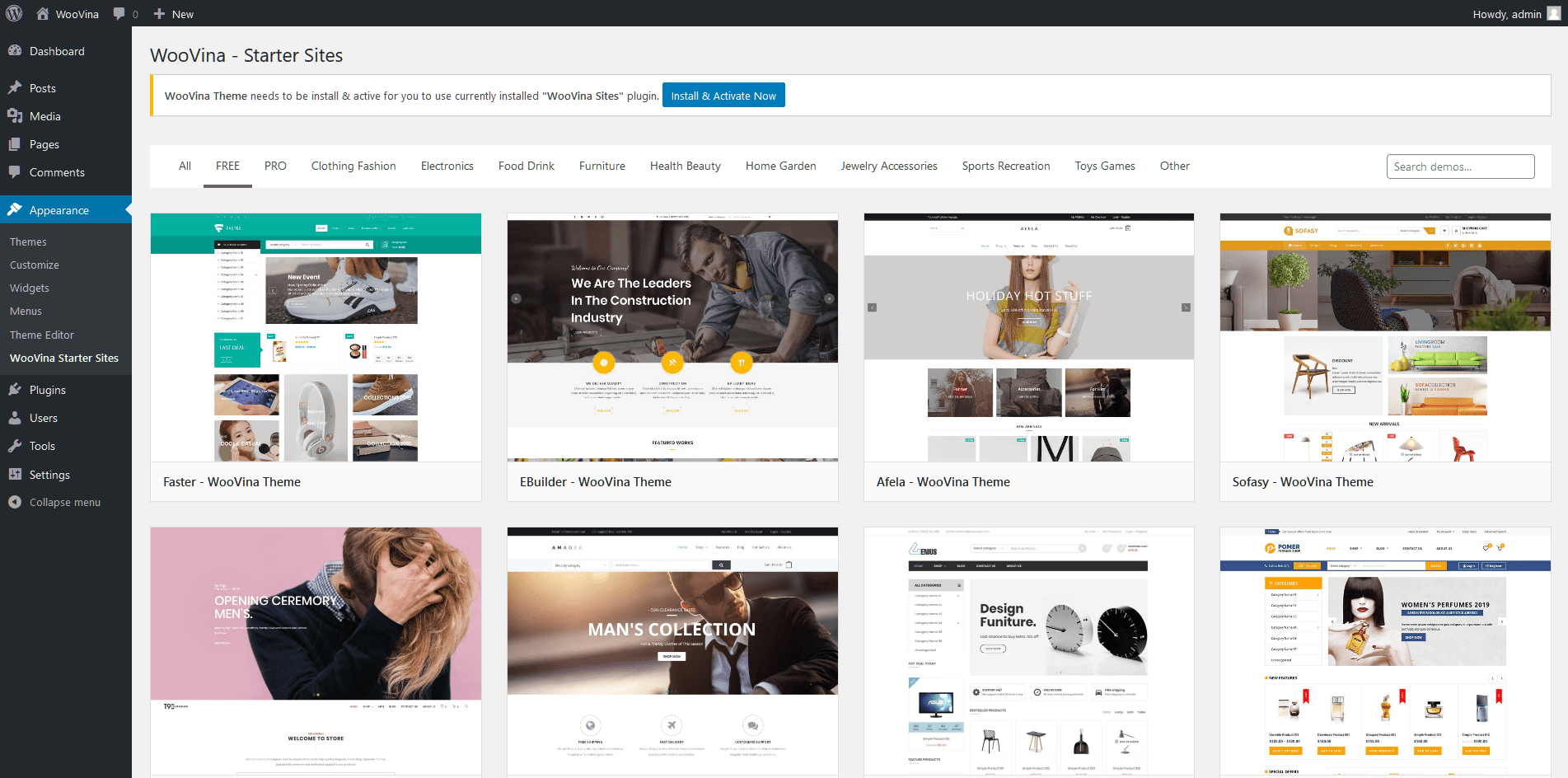
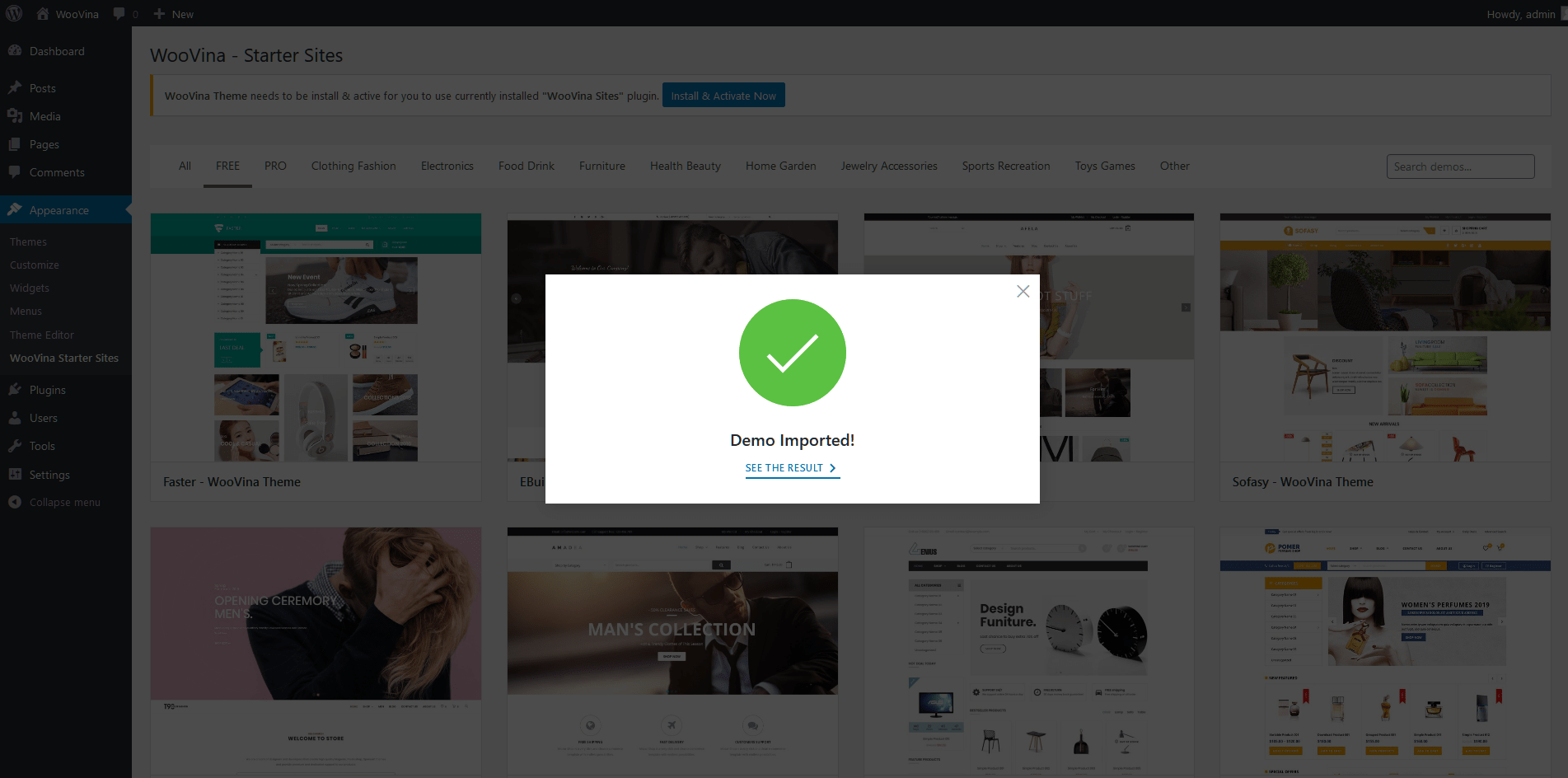
There are two ways to import a demo (a starter site) of the WooVina theme. Here is how to import a demo using a bundle package (WooVina Starter Sites and WooVina Starter Sites Pro). If you have downloaded a Single Demo Package, please see instructions on how to import a single demo package here.
Please note: It is recommended to upload sample data on a fresh WordPress install to prevent conflicts with your current content. You can use this plugin to reset your site if needed: WordPress Database Reset.
I. Import a Website Demo
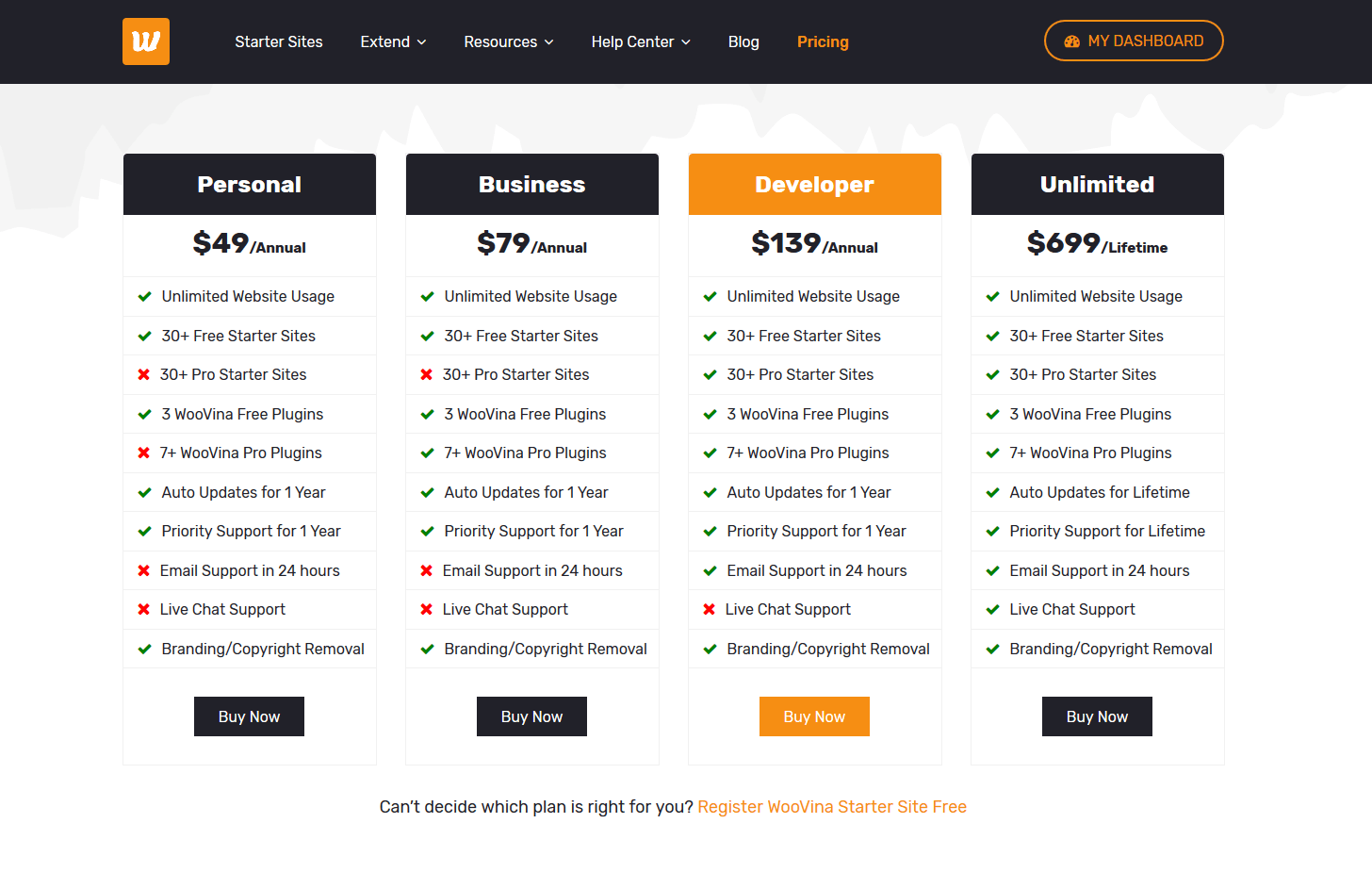
- Choose your subscription plan and get started:
Choose the Free, Personal, or Business package if you want to import 30+ Free Starter Templates. Choose the Developer or Unlimited if you want to import all templates (60+ templates)
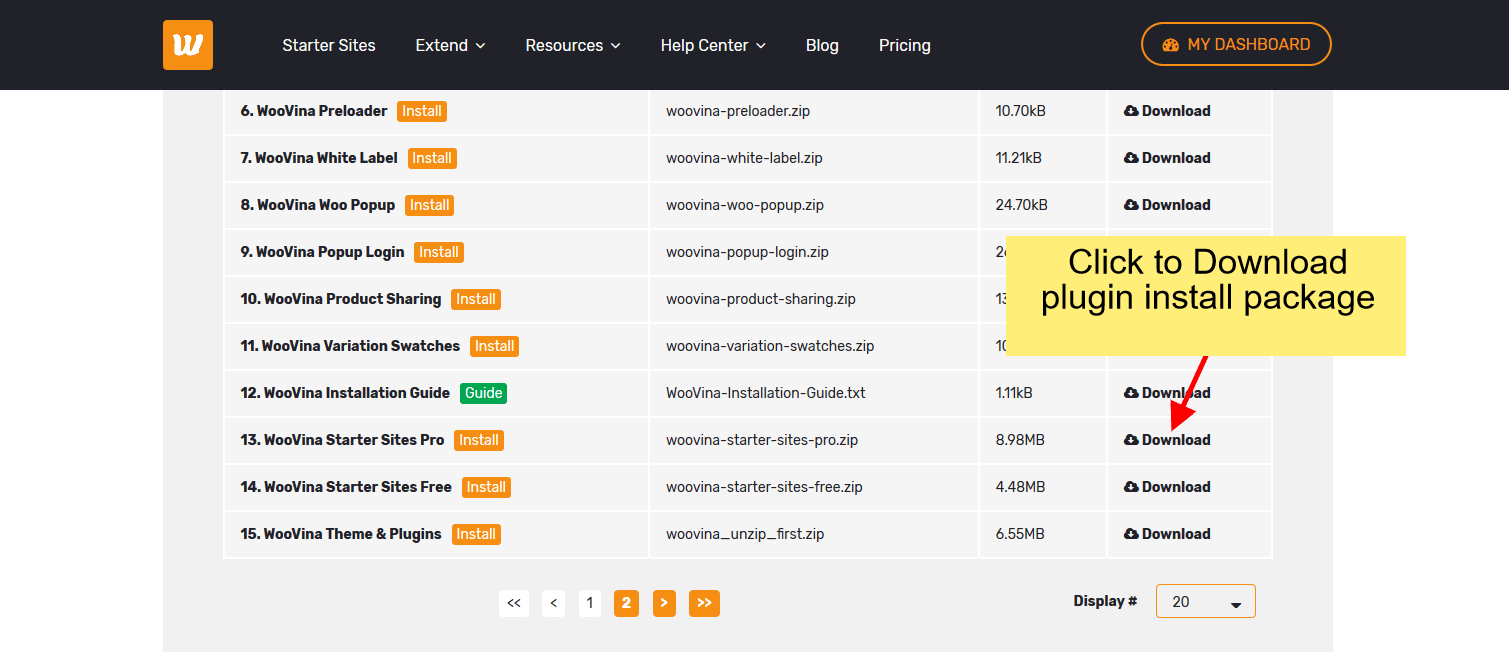
- Download the plugin WooVina Starter Sites Free (or WooVina Starter Sites Pro):
You can download the plugin from your download area: Login to WooVina.com > My Dashboard > Downloads
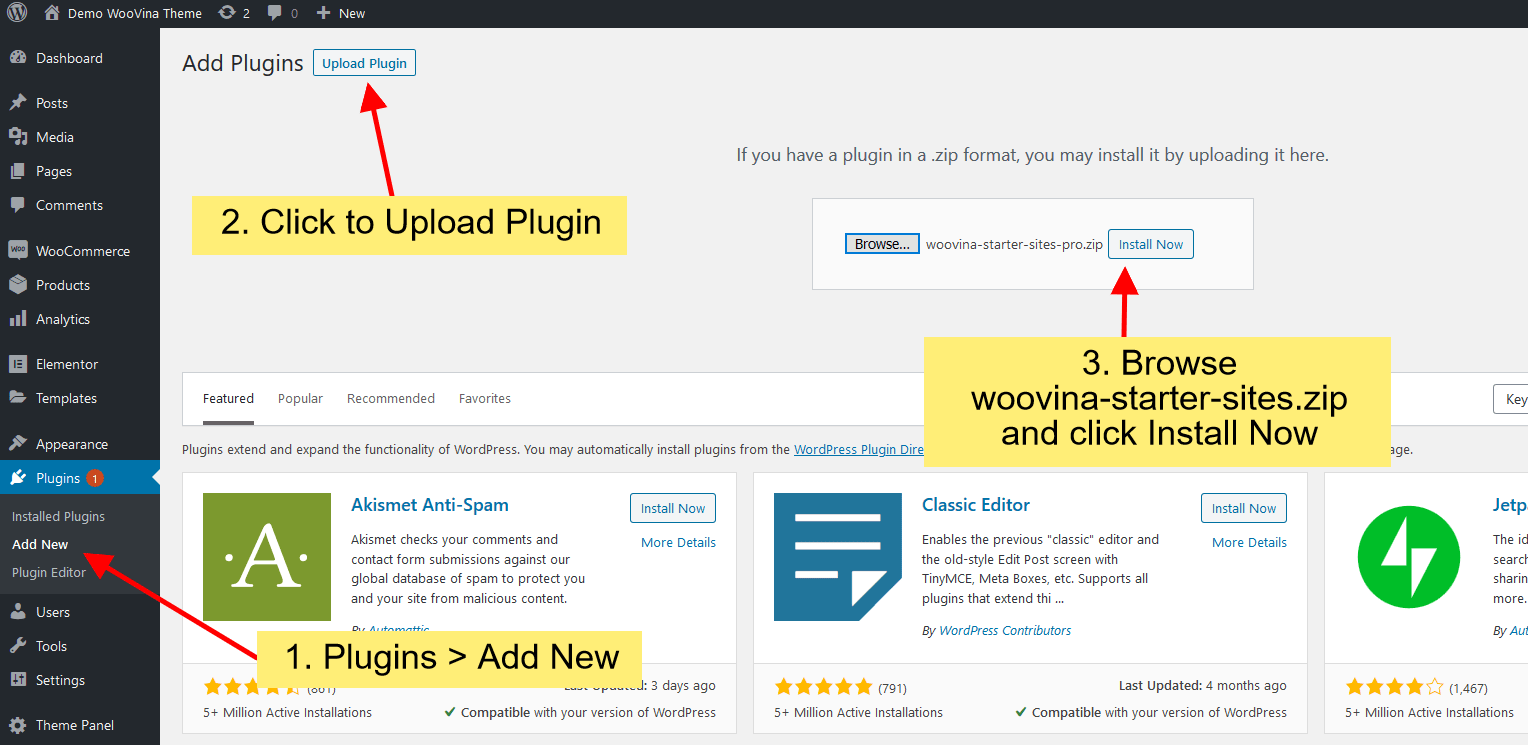
- Install & activate the plugin WooVina Starter Sites Free (or WooVina Starter Sites Pro):
Login to your WordPress site: Plugins > Add Plugins > Upload Plugin
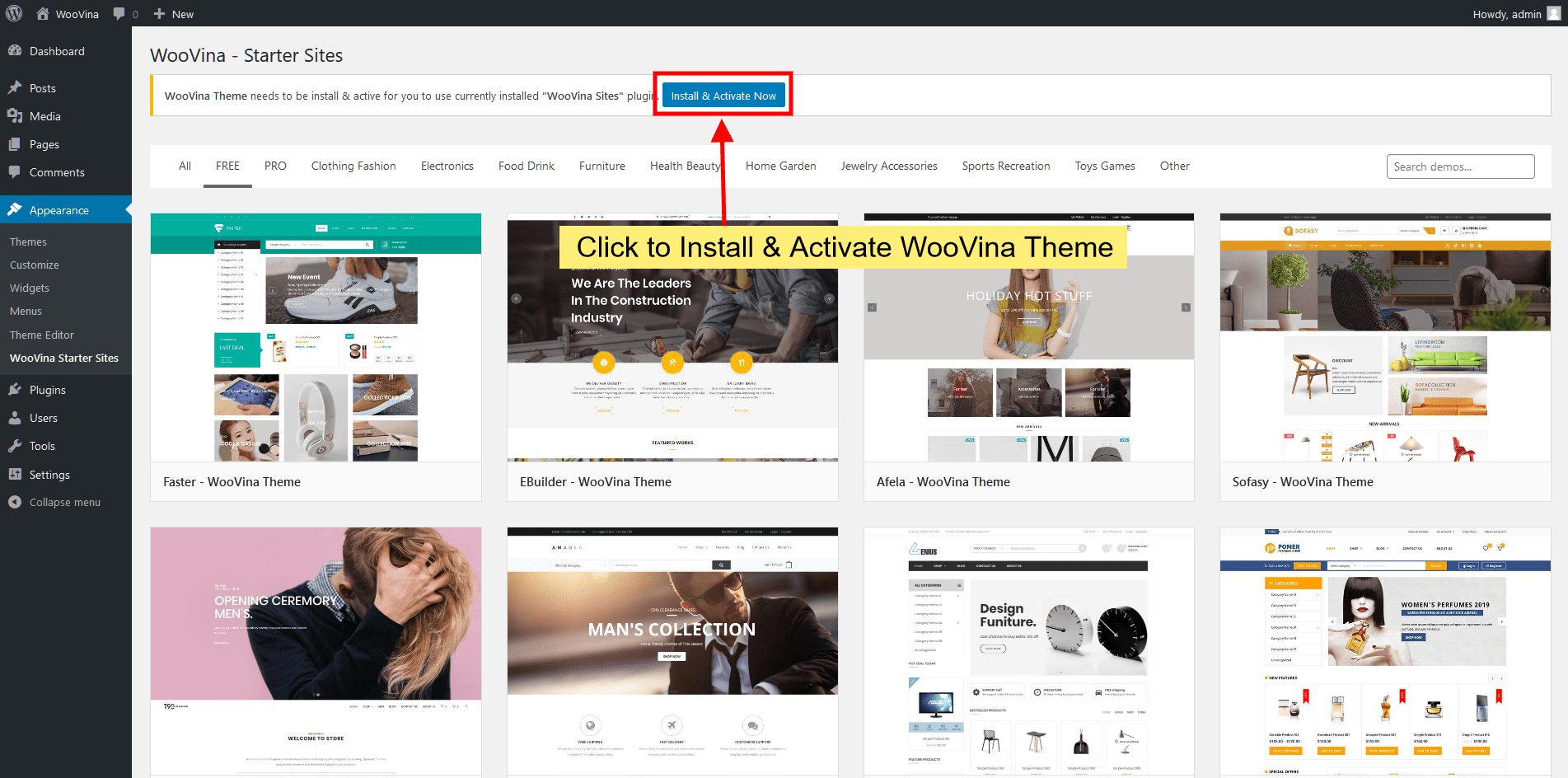
- Install WooVina theme & Woovina core plugins:
After activated plugins Go to: Appearance > WooVina Starter Sites (or WooVina Sites Pro) > Click on the button Install & Activate Now
- Install Requires plugins and WooVina Premium plugins:
Click on the demo you want to import and install requires plugins for this demo
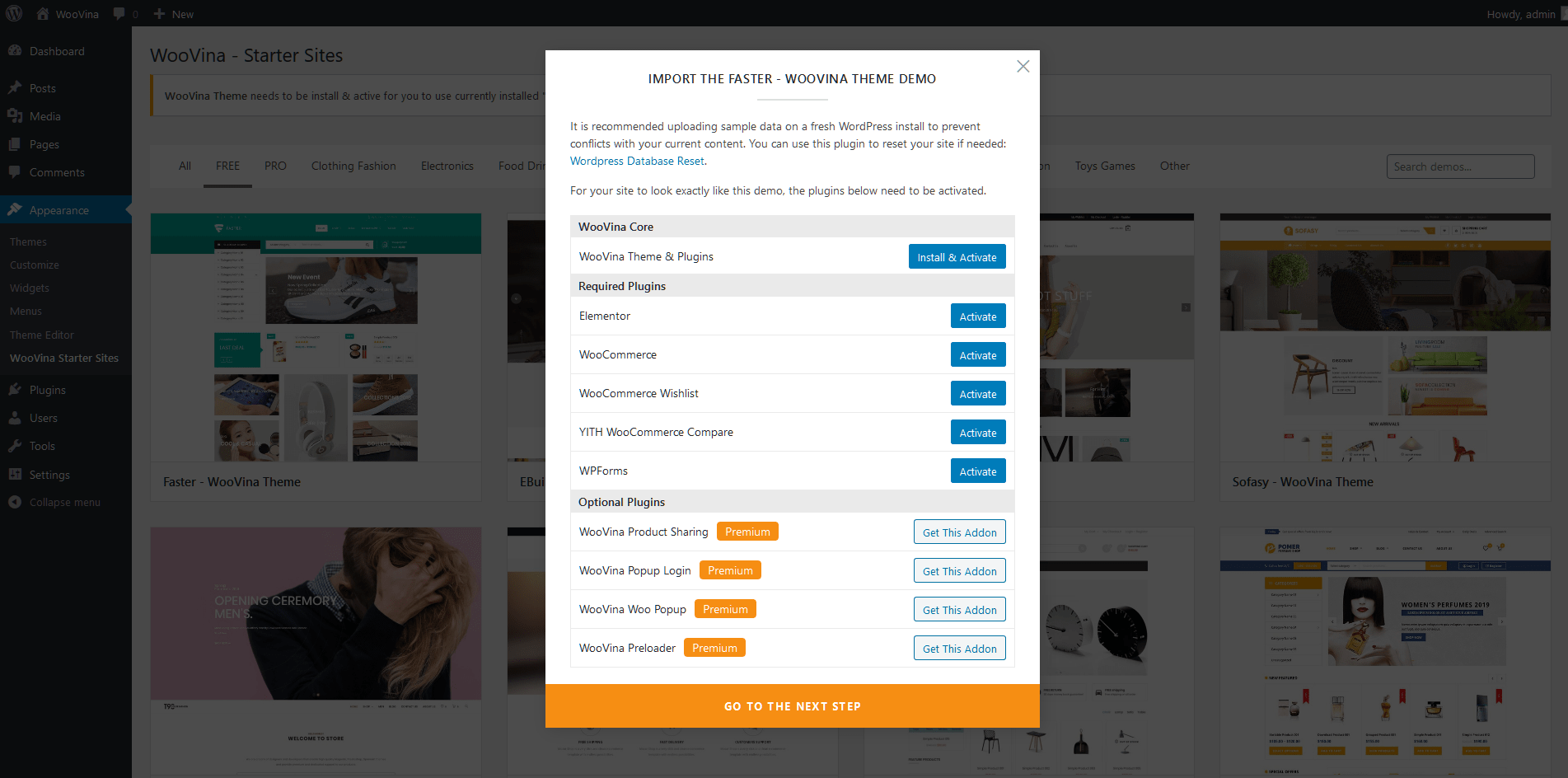
Notes: You can download WooVina Premium Plugins from your download area Login to WooVina.com > My Dashboard > Downloads
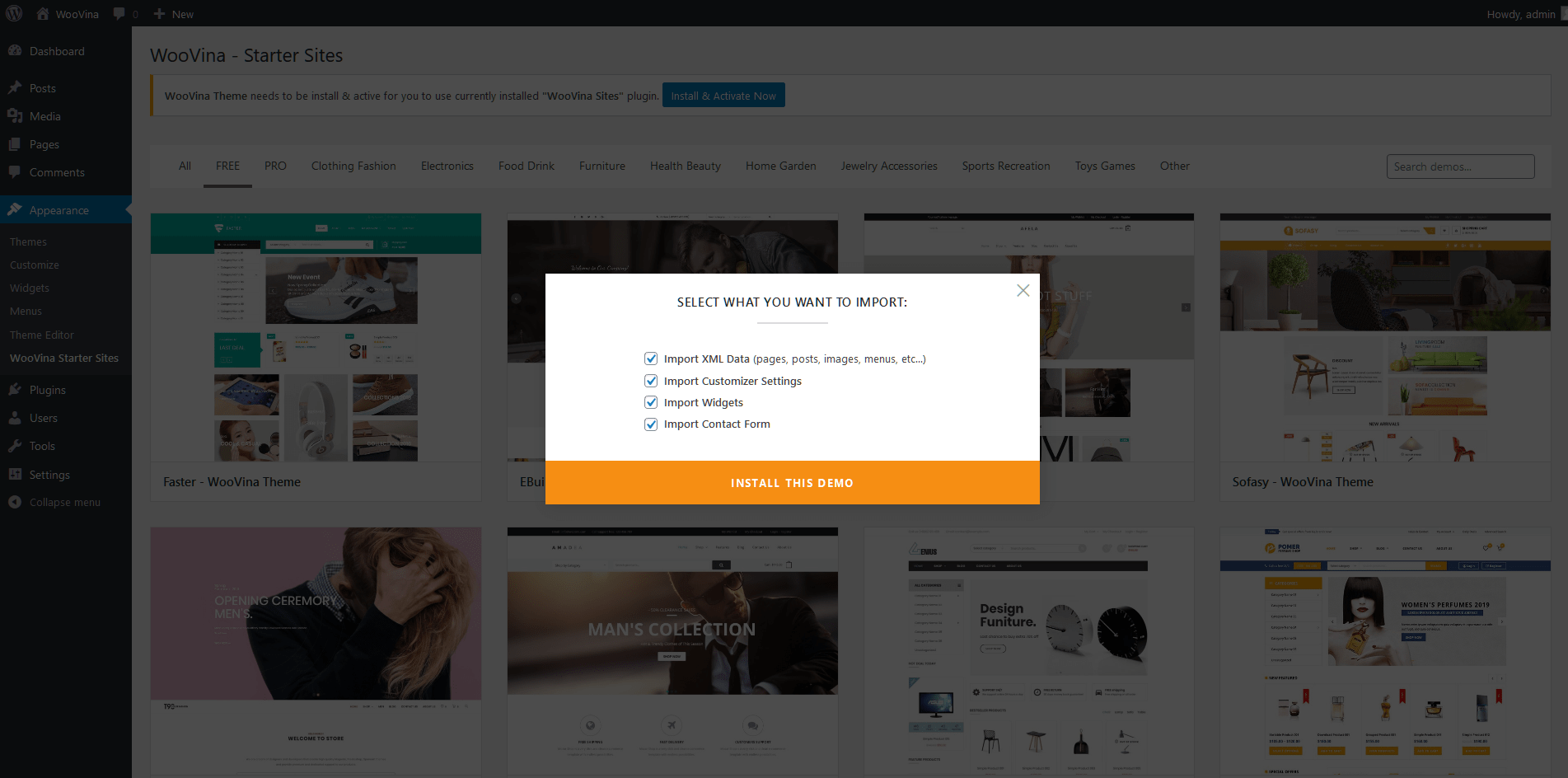
- Select what you want to Import:
You can select data that you want to import to your website
- Demo Imported & Replace URLs in Elementor:
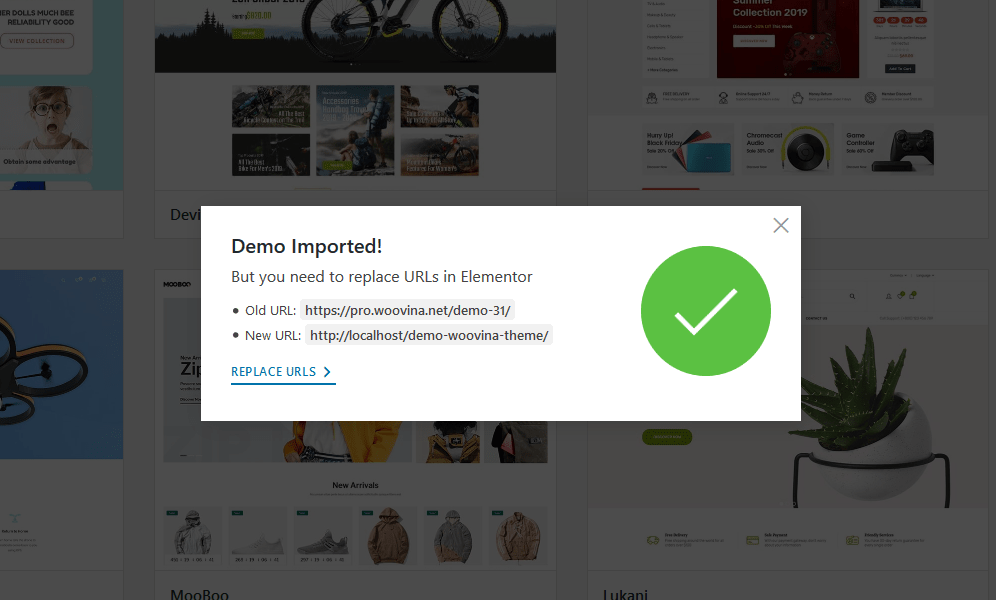
After import successful, you need replace URLs in Elementor. You follow this article to know more details.
- Activate your license to get auto updates:
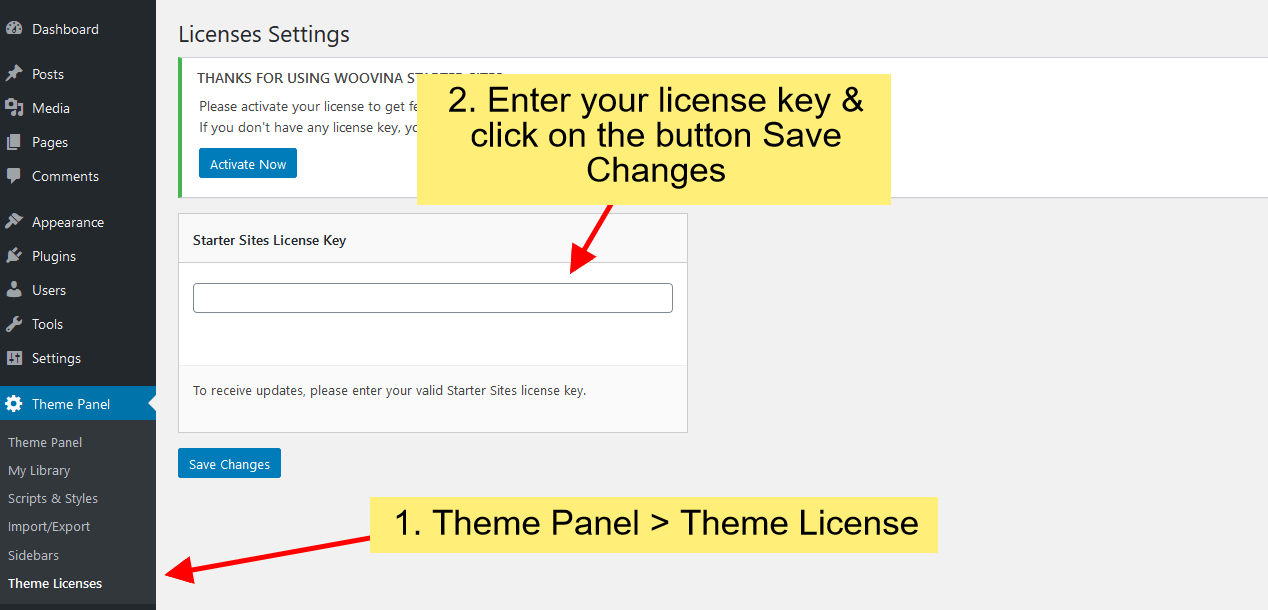
Almost done! Now you need activate your license to get auto updates. You can get your license by: Login to WooVina.com > My Dashboard > Subscriptions
- Congratulations! Now you can do custom work and make the changes with your website.
In some cases, you will get an error that you cannot import a demo. Don't worry, your server configuration may not be right yet. Please check the following requirements and try importing again.
II. Recommended PHP Configuration Limits
Many issues that you may run into such as white screen, your demo import fails, empty page content with Elementor, and other similar issues are all related to low PHP configuration limits. The solution is to increase the PHP limits. You can do this on your own, or contact your web host and ask them to increase those limits to a minimum as follows:
-
max_execution_time 6000
-
max_input_time 6000
-
max_input_vars 5000
-
memory_limit 256M
-
post_max_size 32M
-
upload_max_filesize 32M
If you see any problem when import the demo, please submit a ticket here to get support.